
DakStats Sports Software
Easy to operate. Quick to learn. Accurate stat reports in an instant.
DakStats Sports Software
DakStats sports software is the ultimate tool for managing game, season, and career statistics. From high schools to the major leagues, users of any skill level can quickly track game stats and compile detailed reports with DakStats.
In addition to recording and printing stats, the unrivaled display capabilities of DakStats make it easy to show live stats on LED displays for fans in the stands, or over the Internet so anyone around the world can follow the game action.
See What DakStats Can Do
Visit the download page to grab free, fully-functional copies of all our sports software!
Need Help With DakStats?
The DakStats support resources have a new home where you can find guides and help articles.
DakStats Interface Options
DakStats is much more than an easy-to-use statistics package; it is part of the Daktronics line of high-quality display products. DakStats has been designed to interface with a variety of Daktronics equipment to create a streamlined scoring and display solution that will impress fans and add even more excitement to your events. Connecting DakStats to a Daktronics display provides real-time stats content that engages fans while simplifying display operation.
Game Clock Interface
DakStats Football, Basketball, & Soccer
The Game Clock interface is a DakStats add-on that allows you to connect DakStats software to a Daktronics All Sport 5000 scoreboard controller. Instead of using the space bar to start and stop the clock in DakStats, the time comes directly from the scoreboard controller. This allows the DakStats operator to focus on recording stats and know that all of the timestamps and minutes played statistics are correct for every play.
Connect your Daktronics All Sport 5000 Series Scoreboard Controller to your DakStats sport software to save time and effort. If you already have a Daktronics scoreboard and want to learn how to display live stats, please contact us at 888-325-7828 or DakStats@daktronics.com
Click here to view the All Sport Interface Quick Start Guide.
Press Monitors
Press Row Monitor
The DakStats Press Row Monitor is a versatile press row display interface. It delivers instant statistics updates to the media and announcers during the game, providing valuable game-in-progress information to TV and radio broadcasts as well as sports information directors.
The DakStats Press Row Monitor eliminates the hassles of printing halftime and final stats for media and other announcers, ultimately reducing the effort required to keep track of all the game action. You and your sports fans will be treated to a better, more efficient broadcast.
There are two options available for the DakStats Press Row Monitor:
- Traditional Press Row Monitors (compatible with Sherwood 5000 terminals)
- PC Based Press row Monitors (use extra PCs as Press Monitors)
Available for:
- Volleyball
- Basketball
- Football
If you want to learn more about the DakStats Press Row Monitors, please contact us at 888-325-7828 or DakStats@daktronics.com
DakStats Scoreboard Interface
DakStats Scoreboard Interface
Use the DakStats Scoreboard Interface to take control of baseball scoreboards as well as
basketball and volleyball stat panels and track stats at the same time.
Baseball Scoreboards
By connecting DakStats to your Daktronics scoreboard, you can do more with less personnel. The DakStats software will control functions of the scoreboard such as the B/S/O count and complete linescore, while recording game stats.
Basketball/Volleyball Stat Panels
Since DakStats Volleyball and Basketball software already track stats and know which players are in the game, these programs can supply this information to the Daktronics scoreboard controller. This relieves some of the responsibilities of the scoreboard operator and reduces the effort required to put on a good show for the fans.
Video Displays
DakStats Baseball, Basketball, Football, Volleyball, & Soccer
Daktronics has extensive experience supplying large screen LED video displays to professional and college facilities. As these video display systems become more and more affordable, it's common to find them at all levels of play, from high school gyms to major league stadiums.
Already a key presence in most MLB stadiums, DakStats is the software of choice for any facility looking to display real-time statistical information on video displays. You will also see DakStats on display in Minor League Baseball parks and NFL stadiums, as well as colleges and high schools all over the country.
Whether you have a high-end video display or a small message display, no other company can match the ease of DakStats for providing live stats to your fans and putting on a great show.
Dakstats Webcast
DakStats Webcast
Broadcast Live Statistics to the Internet
Use DakStats Webcast to broadcast live play-by-play scores and stats of your games, and draw attention to your athletic program. DakStats Webcast provides live sports information to fans or alumni who are unable to attend games.
Setting up the Webcast is easy. Simply configure DakStats to generate the Webcasts on the Web-Sync site to give fans and the media live game stats as well as player and team season statistics. Once DakStats is set up to Webcast, all at once you can collect statistics during the game and effortlessly broadcast your game over the web.
DakStats GameCast
DakStats GameCast
Display Football and Basketball Statistics for Press Personnel and Coaches
DakStats GameCast is designed to be viewed by press personnel such as newspaper reporters, radio announcers, and other on-air personalities. GameCast is a simple way to navigate through statistics and find the newsworthy information.
DakStats GameCast can also be used as an interactive report for coaches to analyze team and player performance.
The following information is readily available through DakStats GameCast:
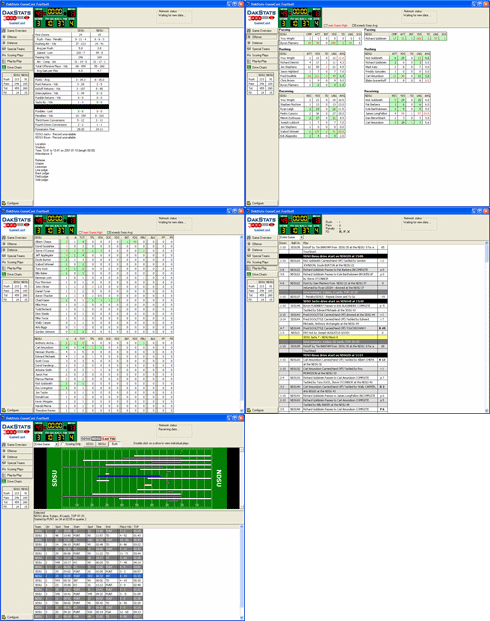
Dakstats Football GameCast:
- Game Overview
- Offensive stats
- Defensive Stats
- Special Teams Stats
- Scoring Plays
- Drive Charts
- Individual Statistics
- Game/Season Leaders
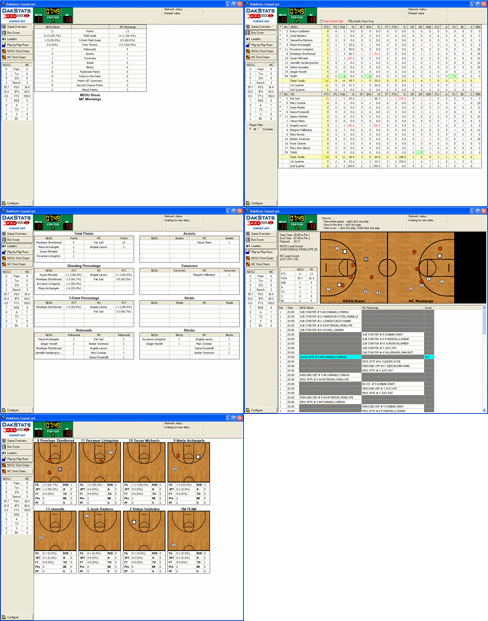
Dakstats Basketball GameCast:
- Game Overview
- Box Score
- Leaders
- Play-by-Play Runs
- Team Shot Charts (Home & Visitor)
- Individual Shot Charts
- Individual Statistics
- Game/Season Leaders